Penthara-Logo-Dark
For Organizations
5-Point Copilot Readiness Checklist for Microsoft 365 blog header image webp version

5-Point Copilot Readiness Checklist for Microsoft 365

This article outlines the 5-Point Copilot Readiness Checklist for Microsoft 365, helping organizations prepare for successful deployment of Microsoft 365 Copilot by focusing on strategy, technical setup, data hygiene, security, and user adoption. 

Microsoft 365 Copilot is your AI assistant that works inside all your favorite Microsoft apps. It helps write emails, create presentations, analyze data, and even joins meetings.

Sounds amazing, right? But here's the catch.

Most organizations only focus on the technical setup – licenses, permissions, and connections. They completely ignore the bigger picture.

What about getting your team to actually use it? Making sure your data stays secure? Having a plan to measure success?

That's exactly what this 5-point Copilot readiness checklist covers.

Ready to prepare for Microsoft 365 Copilot the right way? Let's jump in.

Microsoft 365 copilot integrated with other Microsoft 365 Apps

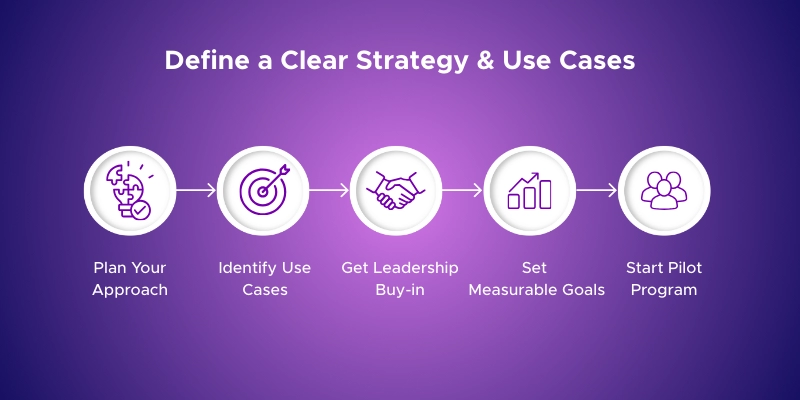
1. Define a Clear Strategy & Use Cases

Don't just turn on Copilot and hope for the best. You need a game plan first.
  1. Identify real pain points. Think drafting emails, summarizing meetings, or creating reports. Pick 3-5 high-impact use cases like sales pipeline summaries or HR policy drafts.
  2. Get leadership buy-in early. Your executives need to understand what Copilot can and can't do.
  3. Set measurable goals. Not "make work easier" but "save each sales rep 5 hours per week" or "reduce document turnaround by 30%."
  4. Start with a pilot team. Learn what works, then expand gradually.
Focus on real pain points where you already have good data available. Not sure where Copilot fits in your workflows? Explore how businesses are boosting efficiency with Microsoft 365 Copilot to discover practical use cases and success stories.
Define a clear strategy and use cases

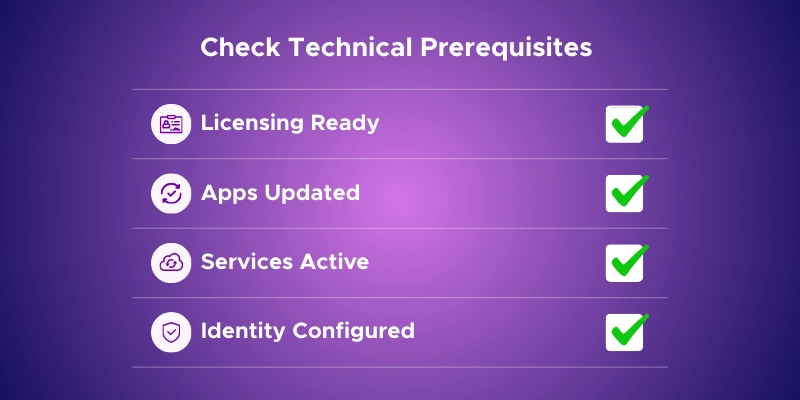
2. Check Technical Prerequisites

Before Copilot can work, your IT setup needs to be ready.

  1. Get licensing sorted first. Each user needs a base Microsoft 365 license (E3, E5, or Business) plus a separate Copilot add-on license at $30/user/month.

Looking to save on Microsoft licensing costs? We help organizations get better pricing on their Microsoft 365 subscriptions - feel free to reach out if you'd like to explore volume discounts.

  1. Update all Microsoft 365 apps. Make sure everyone's on Current Channel or Monthly Enterprise Channel for updates. Update Word, Excel, PowerPoint, Outlook, Teams, and OneDrive to latest versions.
  2. Turn on required services: SharePoint Online, OneDrive for Business, Teams with meeting transcripts, Exchange, Loop, and Whiteboard must all be active.
  3. Check your identity setup. Ensure Microsoft Entra ID is configured properly for authentication and permissions.

Pro tip: Use Microsoft's setup guide wizard in the M365 Admin Center - it walks through these technical steps automatically.

The goal is simple: tick off every technical checkbox so you don't hit roadblocks later.

Check technical Prerequisites before copilot deployment

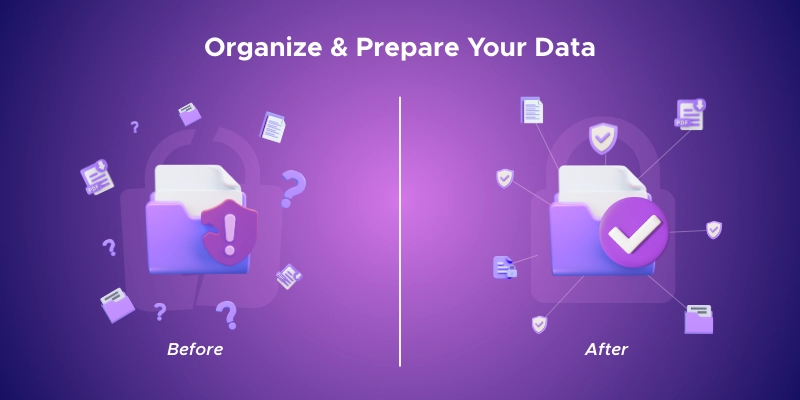
3. Organize & Prepare Your Data

Copilot is only as smart as the data it can access. If your digital workspace is messy, Copilot's answers will be too.

  1. Clean up your content first. Delete redundant, outdated, and trivial files from SharePoint, Teams, and OneDrive. Copilot should find good information, not that 2019 draft nobody used.
  2. Fix permission problems now. Copilot uses any data a user has access to. If someone accidentally shared sensitive folders broadly, Copilot might include that in anyone's response. Run sharing reports and tighten access.
  3. Exclude sensitive SharePoint sites. Identify sites containing confidential data (HR records, legal documents, financial reports) and restrict Copilot access. Use SharePoint site permissions or exclude them from search to prevent AI from surfacing sensitive information.
  4. Set up data classification. Use sensitivity labels and data loss prevention policies so Copilot understands what's confidential.
  5. Organize everything logically. Use clear folder structures and consistent naming. Store important knowledge in designated Microsoft 365 locations, not scattered personal drives.
  6. Archive inactive sites. Clean up old project sites that nobody uses anymore.

Think spring cleaning before Copilot arrives - a tidy digital house means better AI assistance.

Organize & prepare your data before the copilot rollout

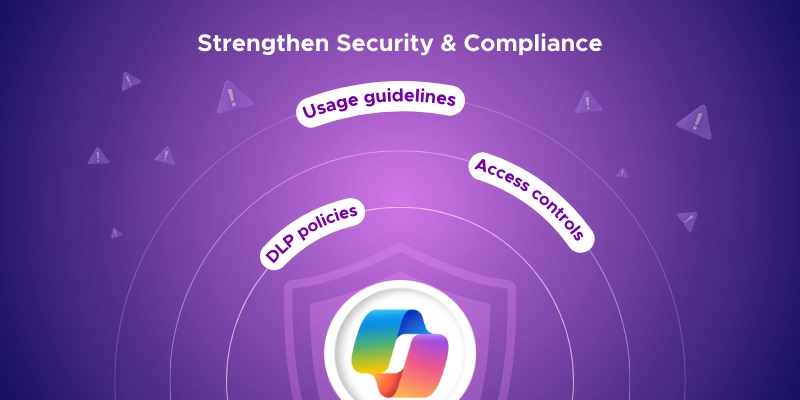
4. Strengthen Security & Compliance

40% of organizations have delayed Copilot due to security concerns. Get this right before turning on the AI.

  1. Do a security checkup first. Review your Microsoft 365 security settings like Conditional Access and data classifications. Remember: Copilot follows existing permission rules - it won't give someone access to files they couldn't already see.
  2. Stop oversharing before it's a problem. Enable or update Data Loss Prevention (DLP) policies now. If you have sensitive customer or financial data that should never appear in AI responses, DLP can block it.
  3. Check compliance requirements. If you're in a regulated industry, verify using Copilot aligns with your policies. Microsoft won't use your data to train their models and provides enterprise-grade security protection.
  4. Create clear usage guidelines. Your employees need rules: What shouldn't they ask Copilot? What sensitive documents shouldn't be summarized? Make it crystal clear that existing security policies still apply.

Done right, Copilot can be more secure than employees using random AI tools online.

Concerned about AI and data protection? Learn how Microsoft Copilot for Security helps you stay ahead of threats while maintaining compliance and control.

Strengthen Security & Compliance before rolling out the copilot

5. Prepare Users & Drive Adoption

Even with perfect tech setup, Copilot fails if people don't embrace it. This is where many rollouts go wrong.

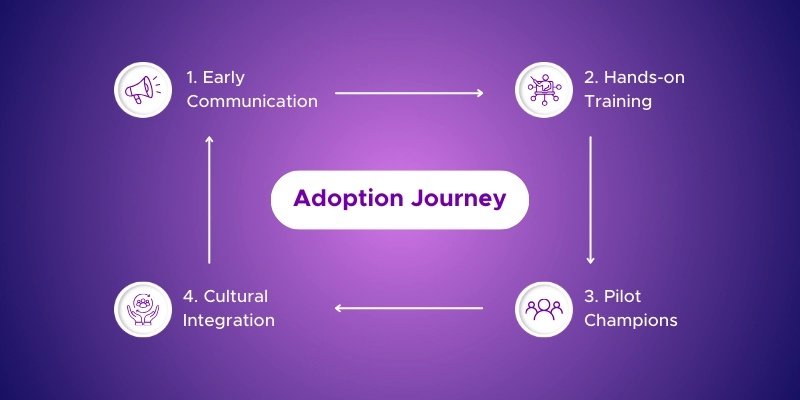
  1. Start talking early. Send announcements explaining what Copilot is - a work assistant, not Big Brother. Share your timeline and create excitement, not anxiety.
  2. Train properly. Run hands-on workshops with real examples: show marketers how to draft campaigns in Word, teach salespeople to summarize meeting notes in Teams. Focus on crafting good prompts and refining outputs.
  3. Launch with pilots first. Pick early adopters to test drive Copilot and become your champions. Their success stories beat any corporate memo.
  4. Build it into culture. Have team leaders ask in meetings: "Anyone use Copilot for this project?" Make discussing AI wins and failures normal.
  5. Keep measuring. Check usage reports and run quick surveys. Adjust training based on feedback.

You want people using Copilot thoughtfully, not blindly trusting everything or ignoring it completely.

Prepare users and drive adoption

6. Monitor & Evolve (Bonus Point)

You've launched Copilot, but the real work starts now.

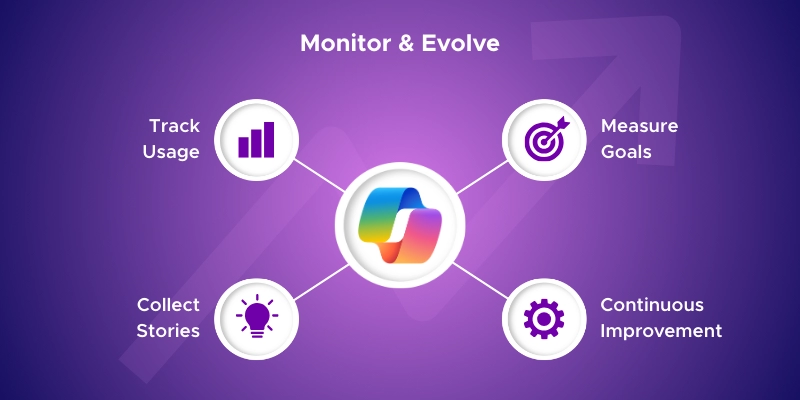
  1. Track what's happening. Use Microsoft's usage dashboards to see who's using Copilot and who isn't. Don't just look at numbers - understand the "why" behind the data.
  2. Measure against your goals. Remember those "save 5 hours per week" targets from step 1? Now check if they're actually happening.
  3. Collect success stories. When someone discovers a brilliant Copilot use case, capture it. Share these real examples in meetings and training - nothing beats "Marketing cut proposal time in half."
  4. Stay updated. Microsoft keeps improving Copilot. Set up a process to review updates and decide if they change your policies.
  5. Assign ownership. Give someone the job of tracking metrics and planning improvements. Don't let monitoring fall through the cracks.

The goal isn't just adoption - it's deepening that adoption so Copilot becomes truly embedded in how your organization works.

Pro tip: Check detailed Copilot usage reports directly at https://admin.microsoft.com/Adminportal/Home?#/reportsUsage/CopilotActivity - this shows exactly which apps people are using Copilot in and how often.

Monitor & evolve after deploying the copilot

Best Practices

Here are the golden rules that separate successful Copilot deployments from the ones that fizzle out.

  1. Make goals bulletproof. Don't say "improve productivity." Say "reduce report creation from 4 hours to 2 hours." Vague goals lead to vague results.
  2. Phase your rollout. Don't flip the switch for 500 people Monday morning. Start small, learn fast, expand smart. Maybe one department every few weeks.
  3. Schedule regular permission audits. Set quarterly reminders to review who has access to what. Data sprawl happens fast.
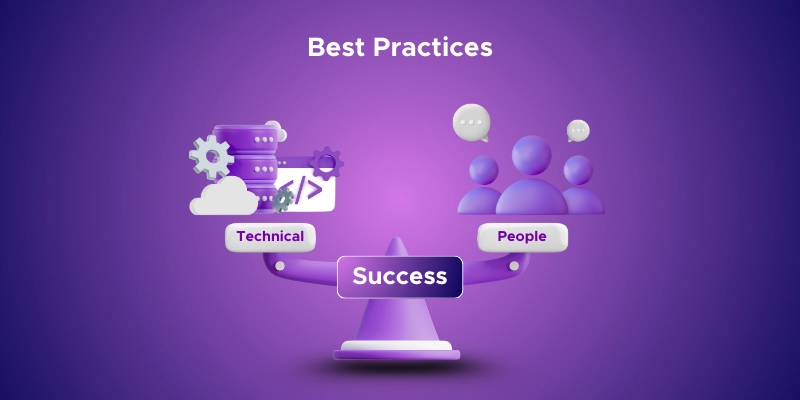
  4. Balance tech and people equally. Don't spend 90% energy on technical setup and 10% on getting people ready. It should be closer to 50/50.
  5. Document everything. Keep notes on what works and what doesn't. Future you will thank you when expanding or troubleshooting.
  6. Stay flexible. Your original plan won't survive reality. The best rollouts adapt based on what they learn.
Best practices

Common Mistakes to Avoid

Learn from others' pain. Here are the biggest Copilot rollout mistakes.

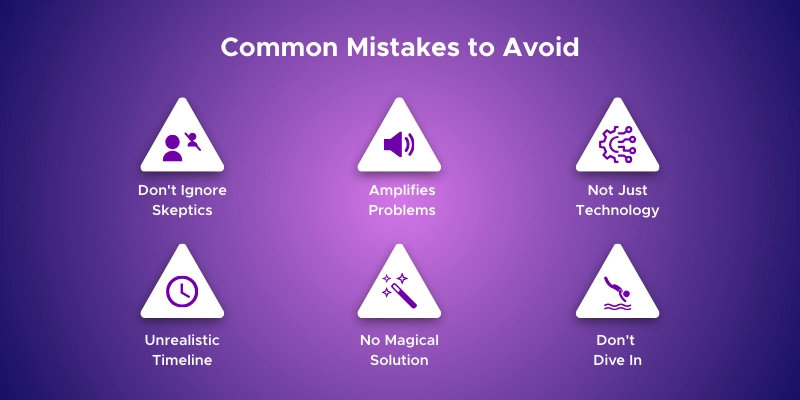
  1. Assuming "it'll just work" magically. Copilot isn't plug-and-play. organizations expecting flawless day-one results get disappointed fast.
  2. Forgetting Copilot amplifies existing problems. If your SharePoint is messy, Copilot gives messy answers faster. It doesn't fix bad data.
  3. Treating it like normal software. This isn't installing Excel. Copilot changes how people work, so you need change management, not just IT deployment.
  4. Setting unrealistic timelines. "Everyone productive in two weeks!" Nope. Good adoption takes months. Rushing creates frustrated users.
  5. Ignoring the skeptics. Every company has employees who think AI will spy on them. Dismissing concerns creates spreading resistance.
  6. Going all-in without testing. Some organizations enable everything for everyone immediately, then discover AI suggesting client names in presentations.

The pattern? Most failures rush the human side while nailing the technical side. Don't be that org.

Common mistakes to avoid

Conclusion

Getting Microsoft 365 Copilot right isn't about flipping a switch and hoping for the best. It's about balancing technology, data, security, and your people.

Organizations that succeed do their homework first - they clean data, tighten security, train teams, and roll out thoughtfully.

Sure, it takes upfront work. But the payoff is huge - you get an AI assistant that actually helps instead of creating headaches.

This isn't a race. Take time to do it right, and Copilot becomes one of your best investments.

Need Help Deploying Microsoft 365 Copilot?

Whether you're just starting or scaling across departments, our Microsoft 365 Copilot Services are designed to help you deploy Copilot with confidence. From environment audits and data readiness to training and adoption – we’ll guide you every step of the way.

Don't let Copilot sit on the shelf because you're unsure where to begin.

FAQs

Q1: Do I need Microsoft Purview for Copilot? No, but it enhances security and compliance. Think of Purview as your premium security upgrade – helpful but not mandatory.

Q2: Will Copilot access private data? Only if the user already has permission to that data. Copilot follows your existing permission rules exactly.

Q3: Can I start with a small group first? Yes – and it's highly recommended. Test with pilot users before rolling out to everyone.

Q4: How much does Copilot cost per user? Copilot costs $30 per user per month (paid yearly) as an add-on to your existing Microsoft 365 subscription. You'll need an eligible base license like E3, E5, or Business licenses first.

Q5: What happens if someone asks Copilot to do something inappropriate? Copilot has built-in content filters and will refuse harmful requests. Your DLP policies also provide an extra safety net.

Q6: Can Copilot work with our on-premises files? No, Copilot only works with cloud-based Microsoft 365 content. You'll need to migrate files to SharePoint Online or OneDrive first.

Q7: Will Microsoft use our data to train their AI models? No. Microsoft has committed that your organizational data stays private and won't be used for model training.

Q8: How long does a typical rollout take? Plan for 3-6 months from start to full adoption. Technical setup might take weeks but getting everyone comfortable and productive takes longer.

Q9: What if Copilot gives wrong information? Always verify Copilot's outputs, especially for important decisions. It's a helpful assistant, not an infallible oracle.

Q10: Can we disable Copilot for certain departments? Yes, you can control access through licensing and security groups. Many organizations start with select departments anyway.

Written & Reviewed by

Jasjit Chopra

Chief Executive Officer
Comment Now

Leave a Reply

Your email address will not be published. Required fields are marked *

More from this Category
Microsoft Copilot

Creating a Copilot Agent for SharePoint: Step-by-Step Guide

Learn how to create a Copilot Agent for SharePoint using SharePoint and Copilot Studio. Follow this step-by-step guide to build...

Microsoft Copilot

What's new in Microsoft | April 2026 Updates

Monthly updates, news & events from Microsoft to help you & your business grow & get best out the Microsoft...

Newsletter blog header - Penthara AI
Microsoft Copilot

What's new in Microsoft Copilot | February 2026

Explore the latest Microsoft 365 Copilot updates including AI meeting recaps, Word editing, PowerPoint agentic features, and enhanced grounding.

crossmenuchevron-down