
The Complete Microsoft 365 Copilot Implementation Roadmap for 2026
Learn how to implement Microsoft 365 Copilot successfully with this step-by-step roadmap. Covers readiness assessment, phased deployment, change management, governance,...

Microsoft Copilot Agents in SharePoint are AI-powered assistants that help users make sense of content stored in SharePoint sites, document libraries, pages, and lists. Using natural language prompts, a Copilot Agent can summarize documents, answer queries, and surface relevant information all scoped to the sources you define.
In this guide, we will walk through how to create a custom Copilot Agent directly from a SharePoint site and how to build a more advanced agent using Microsoft Copilot Studio.
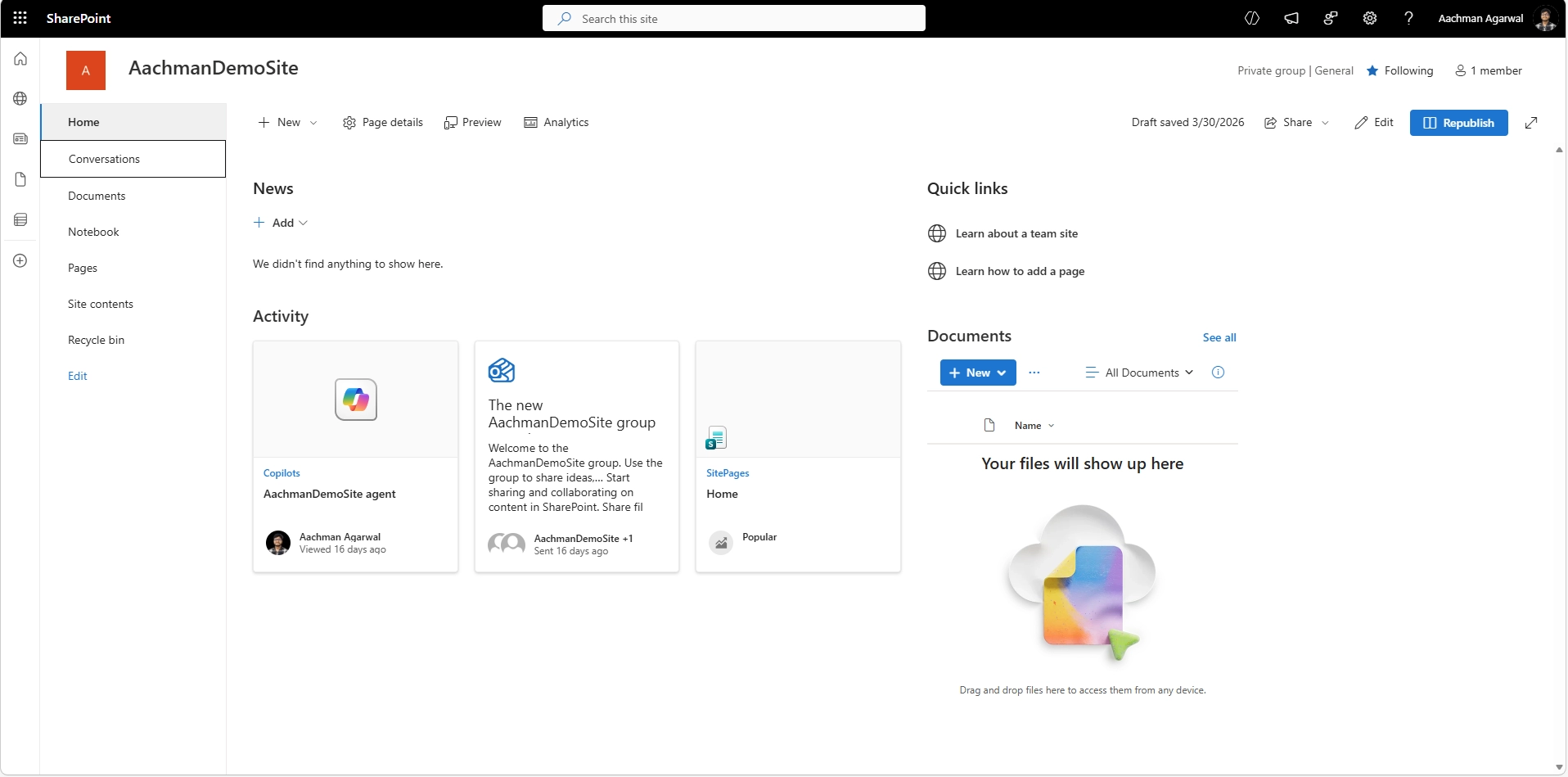
Open your browser and go to the SharePoint site where you want to create the Copilot Agent. Make sure you are signed in with an account that has edit permissions on the site.

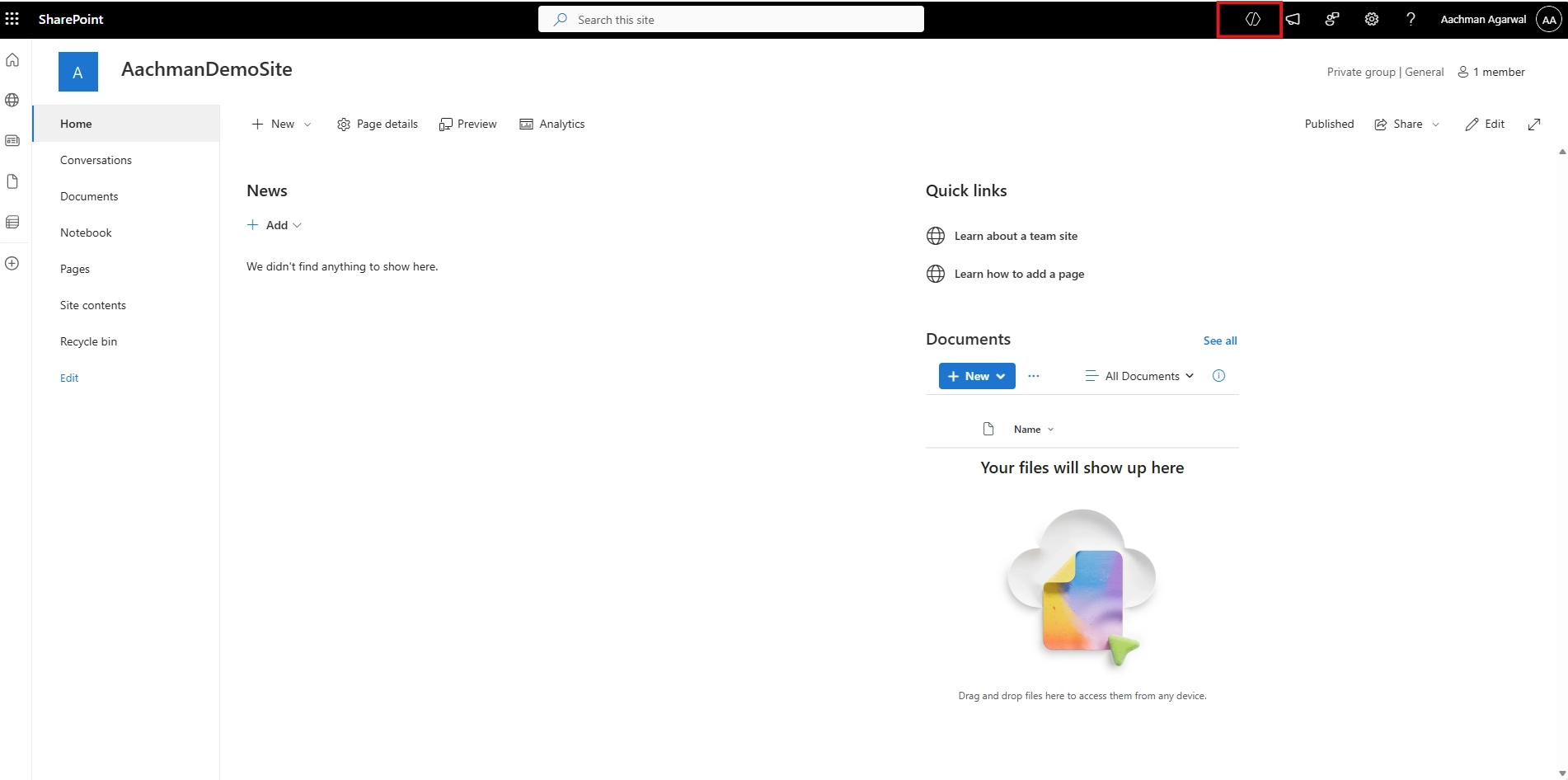
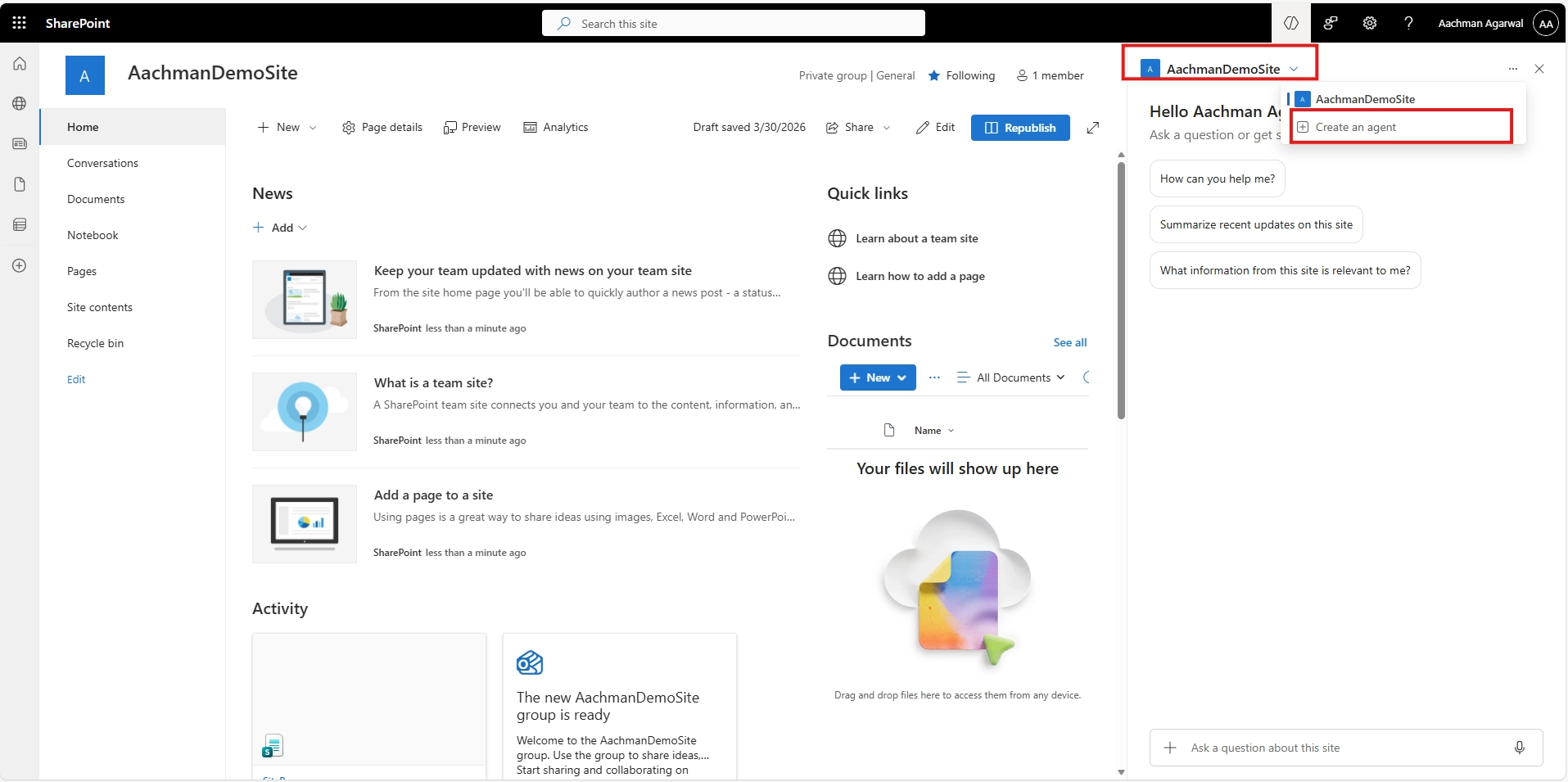
Click on the Copilot logo in the top ribbon of your SharePoint site. The default site agent will appear listed first in the panel menu.

You can create an agent from multiple entry points:

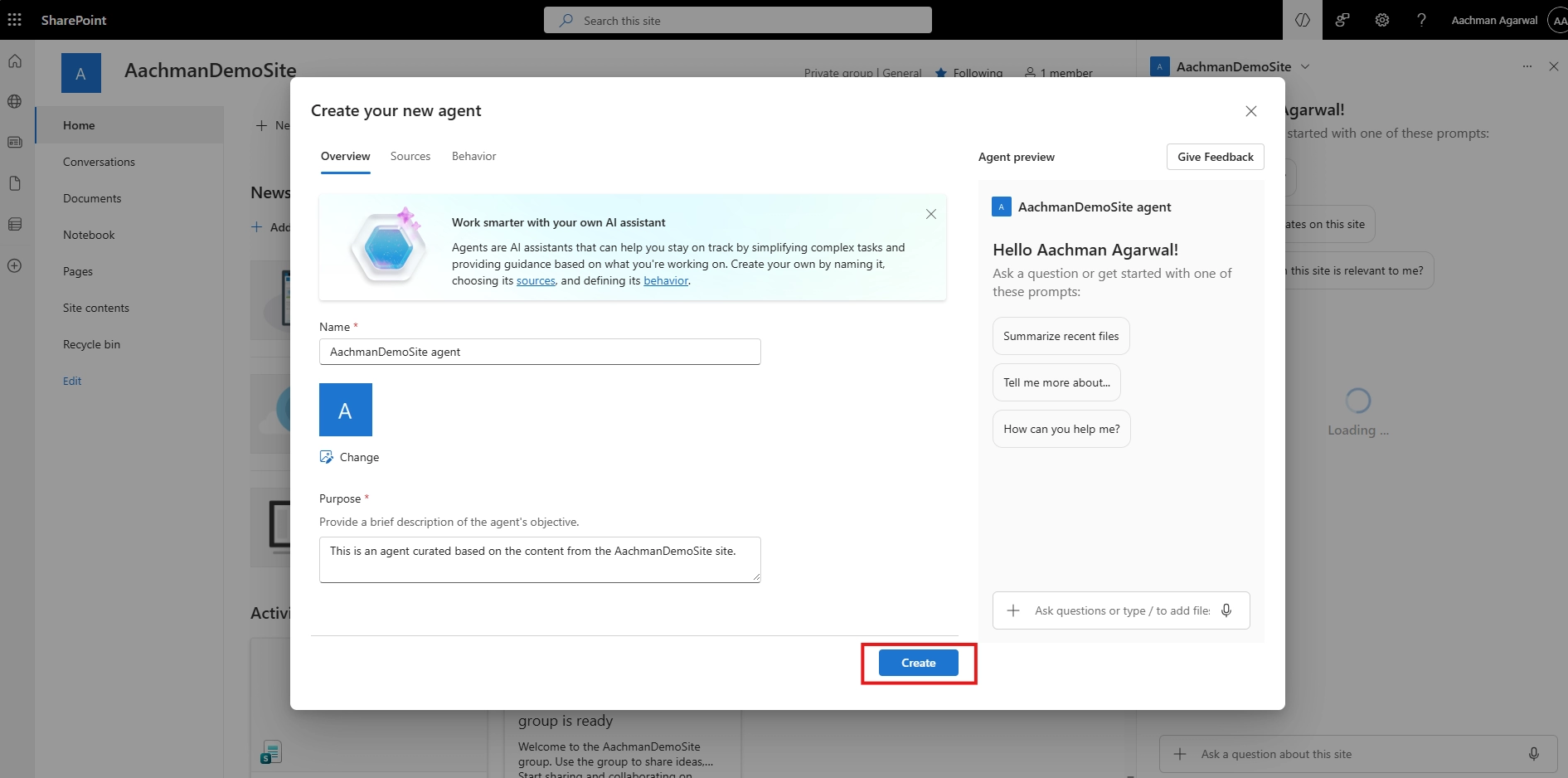
Once the agent is created, click the Edit button. Under the Overview Tab, you can:

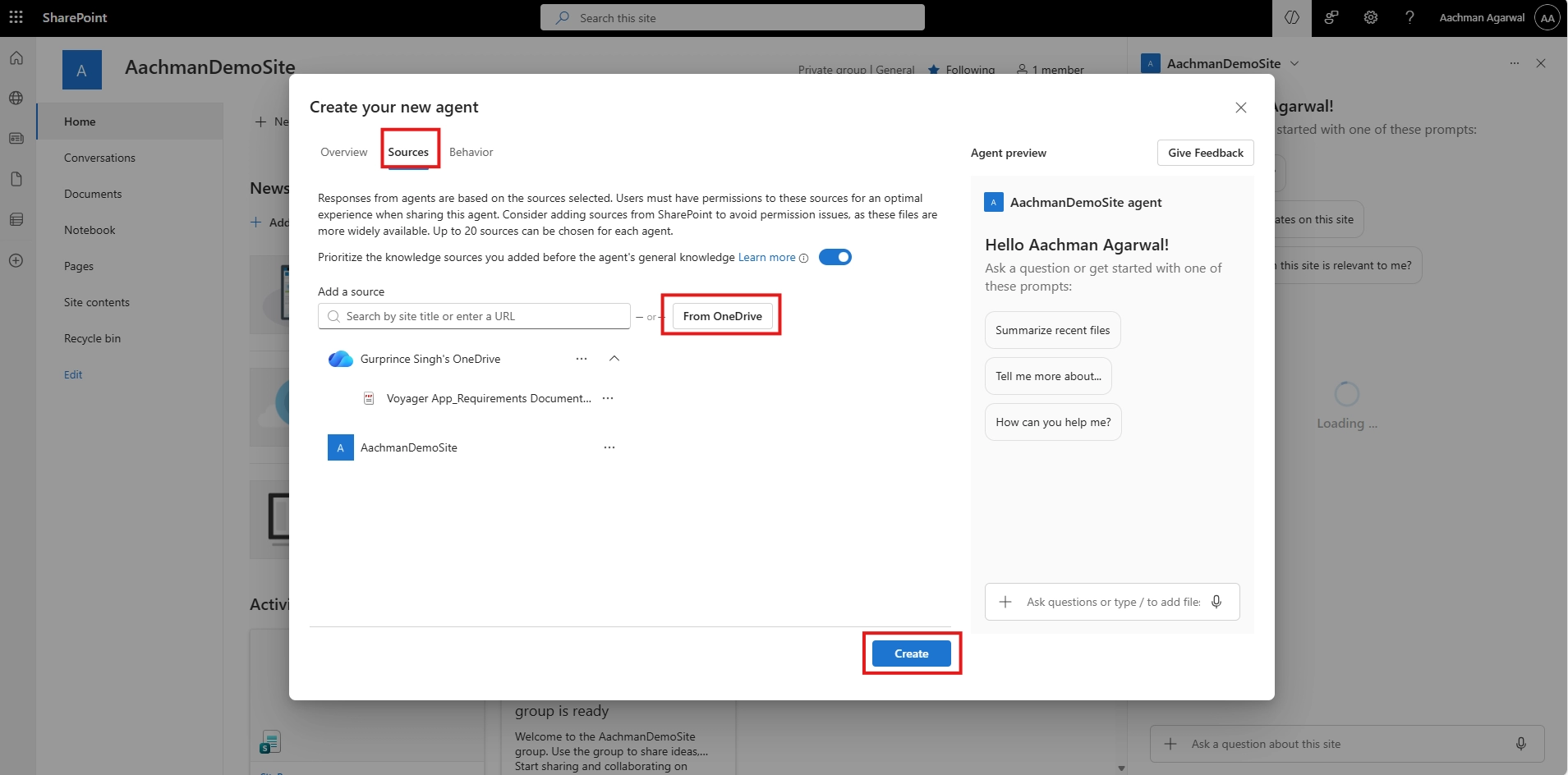
Under the Sources Tab, define exactly what content the agent uses to answer questions:

Note: The agent will only surface information that the signed-in user already has permission to access.
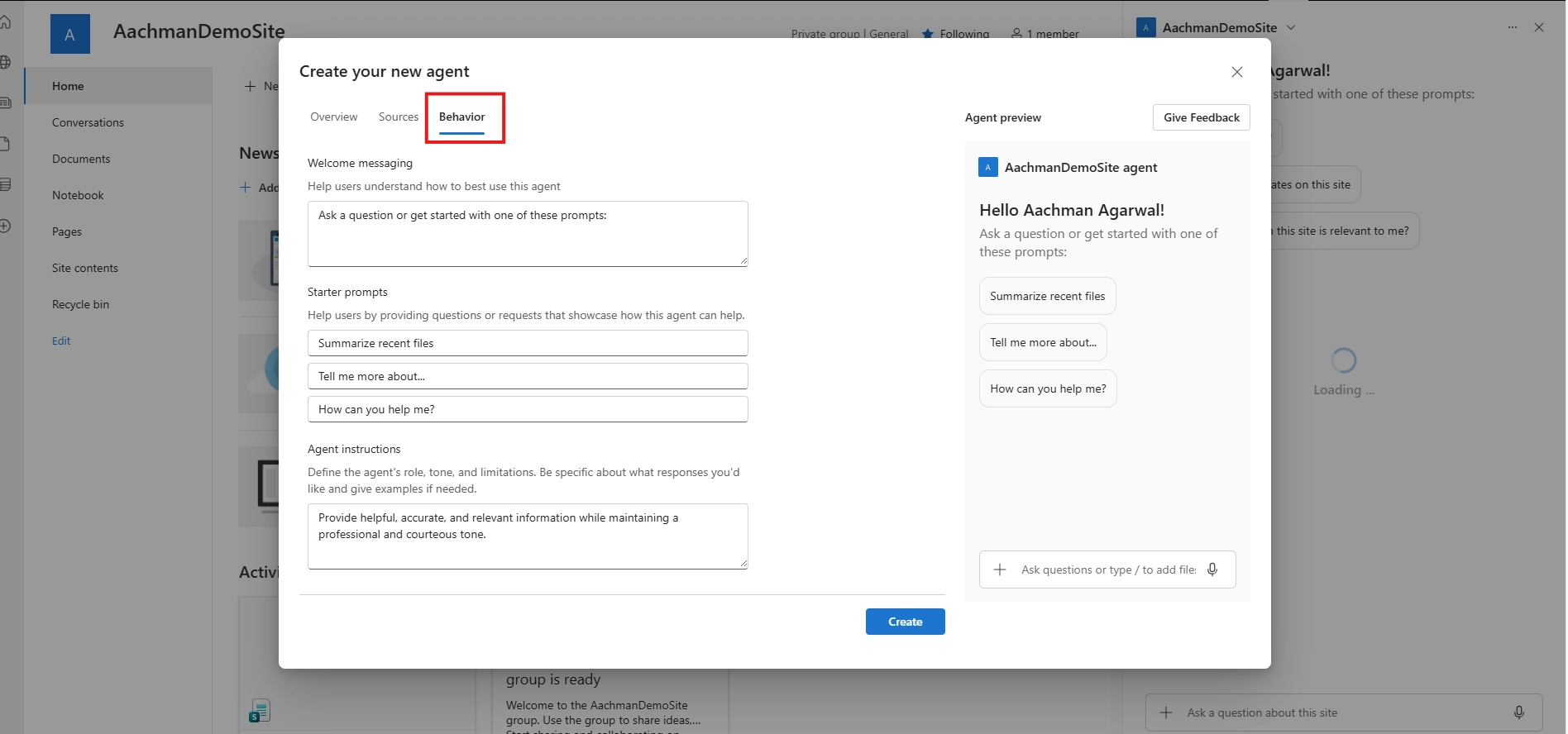
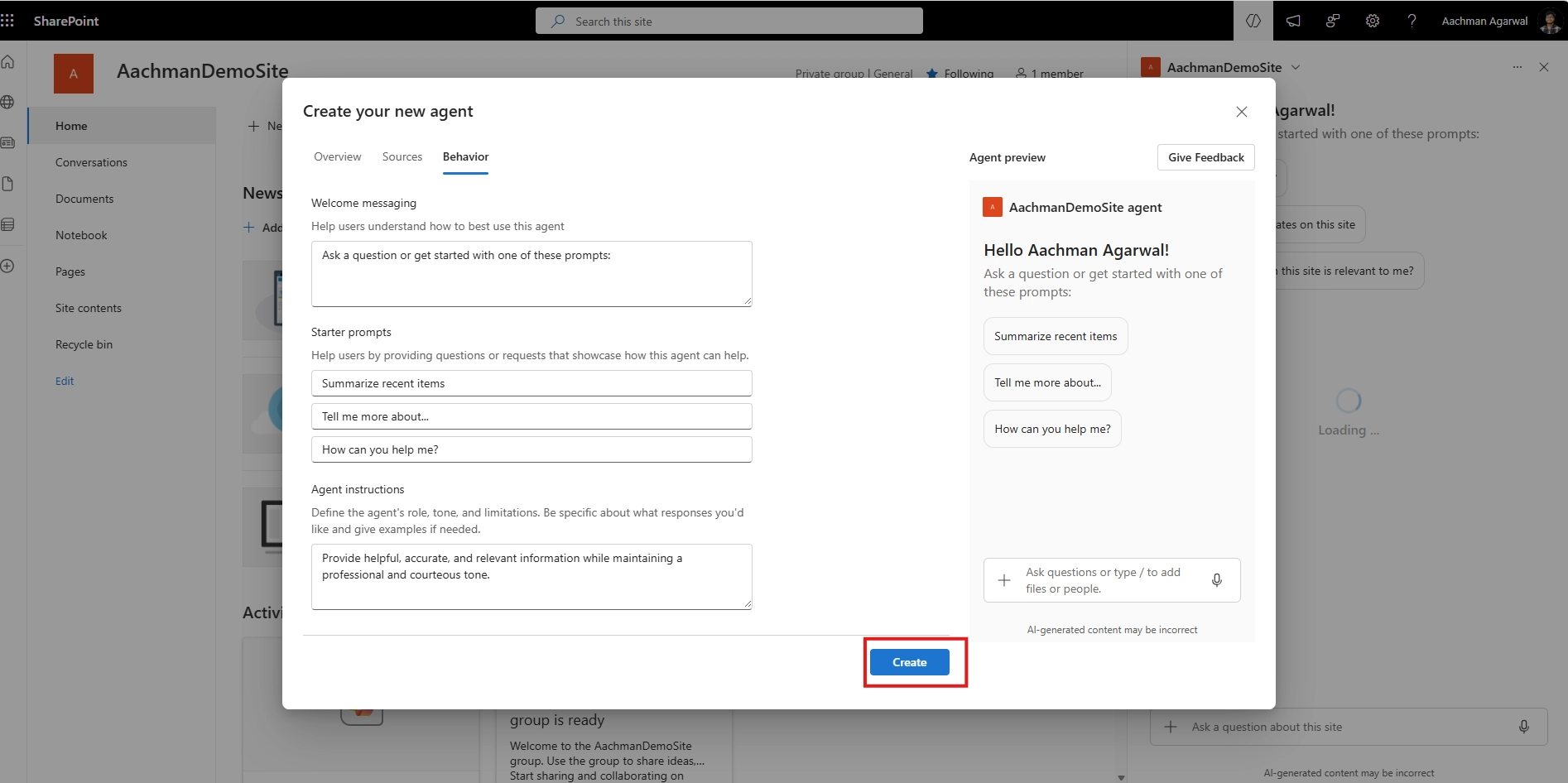
Under the Behaviour Tab, you can:

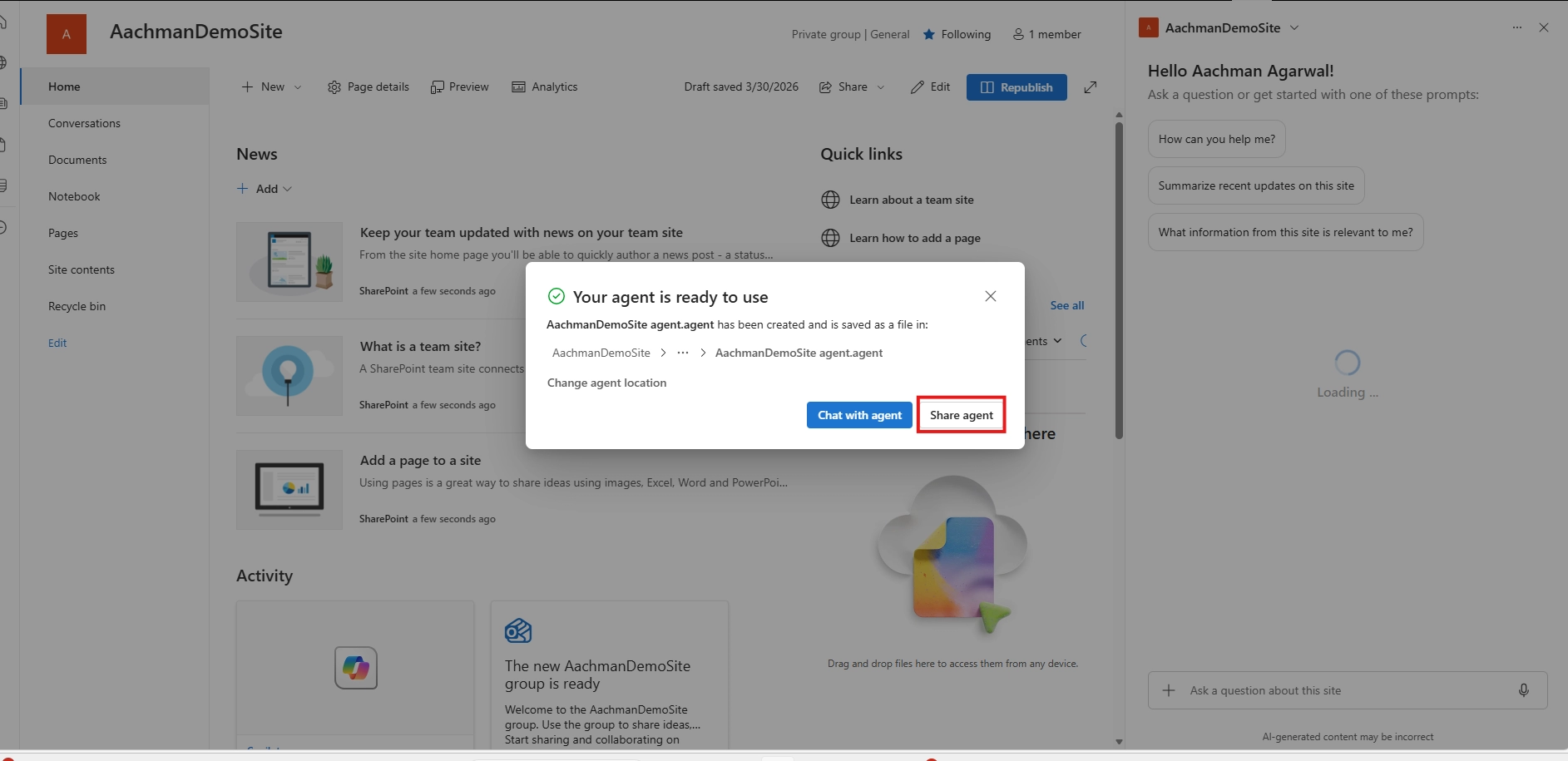
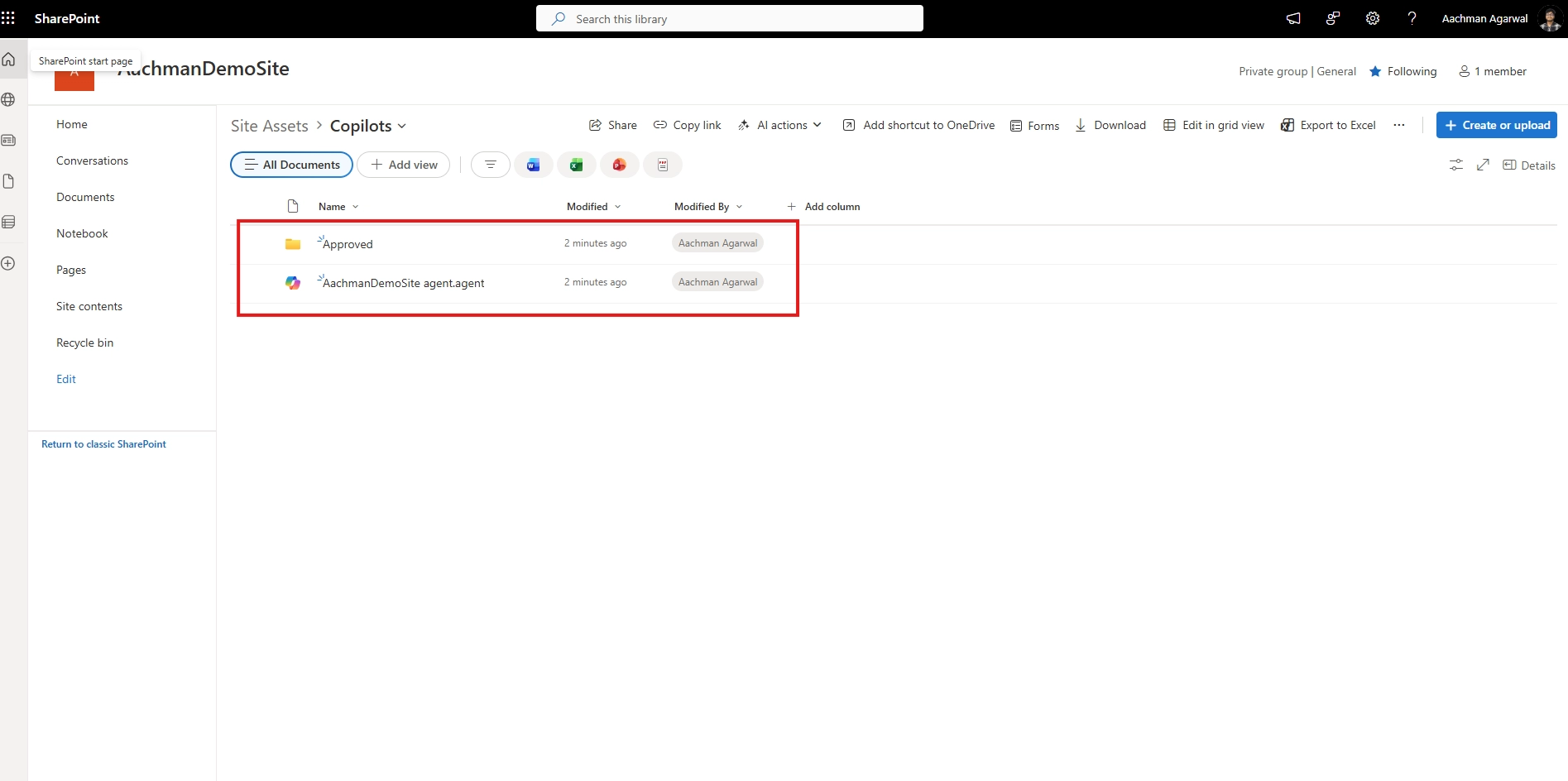
Click Save. The agent file (. agent) will be automatically stored in:
Tip: Since the agent is saved as a file, it supports Version History - so you can restore an older version at any time.

Click the Share button to share the agent with your team. Site Owners can mark it as Approved to make it visible to all users in the agent picker panel.


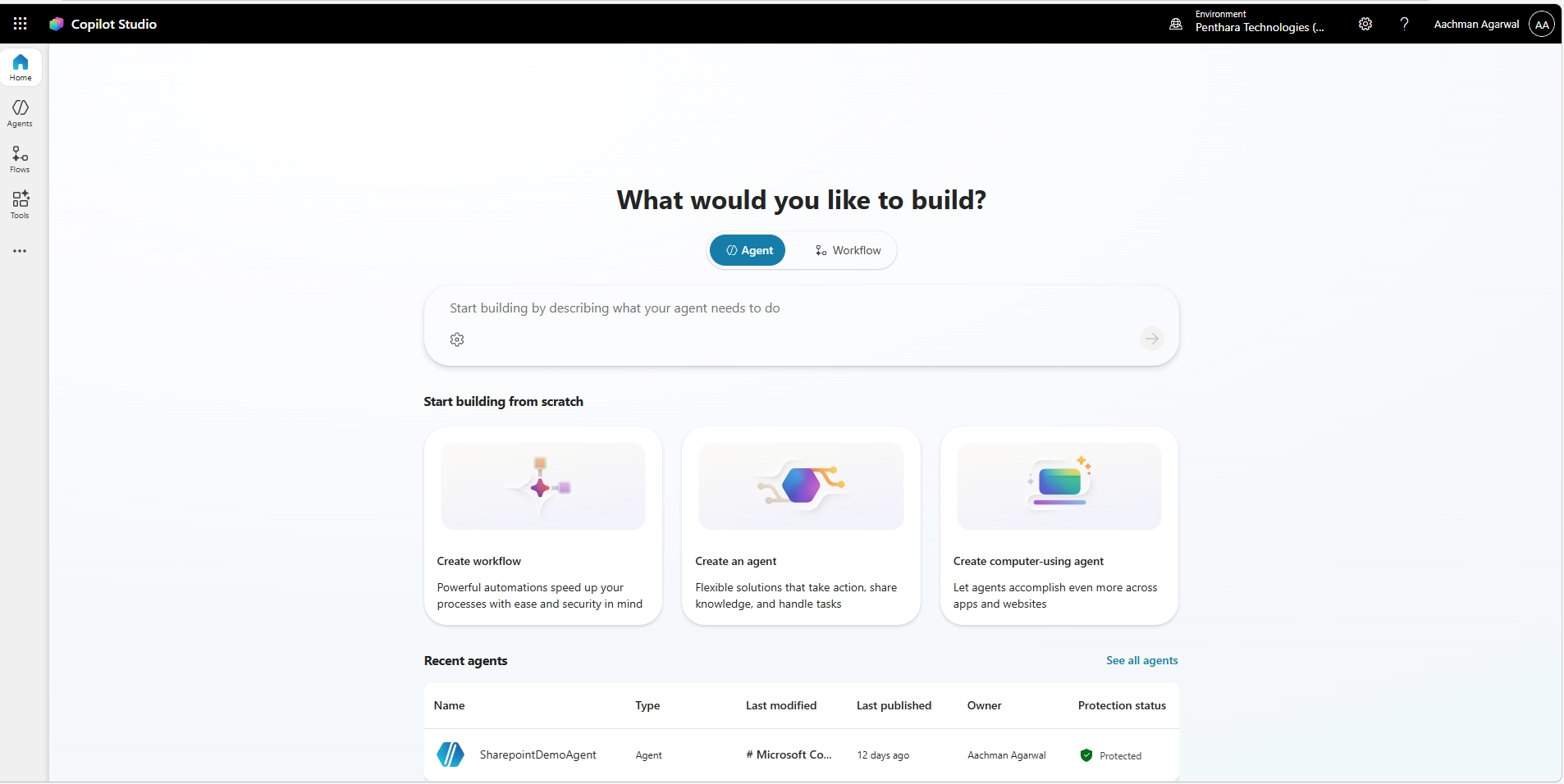
Go to copilotstudio.microsoft.com and sign in with your Microsoft 365 account.

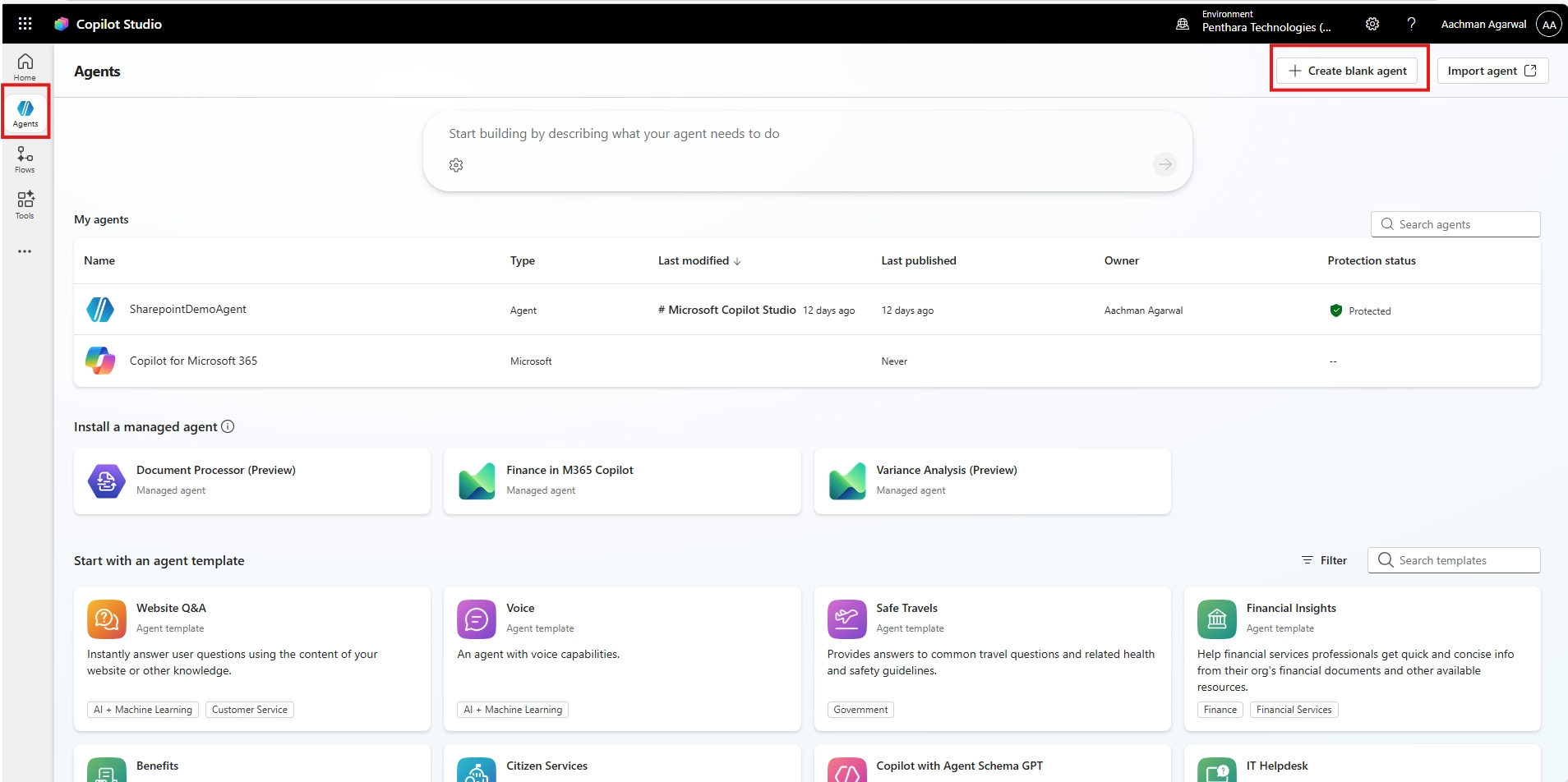
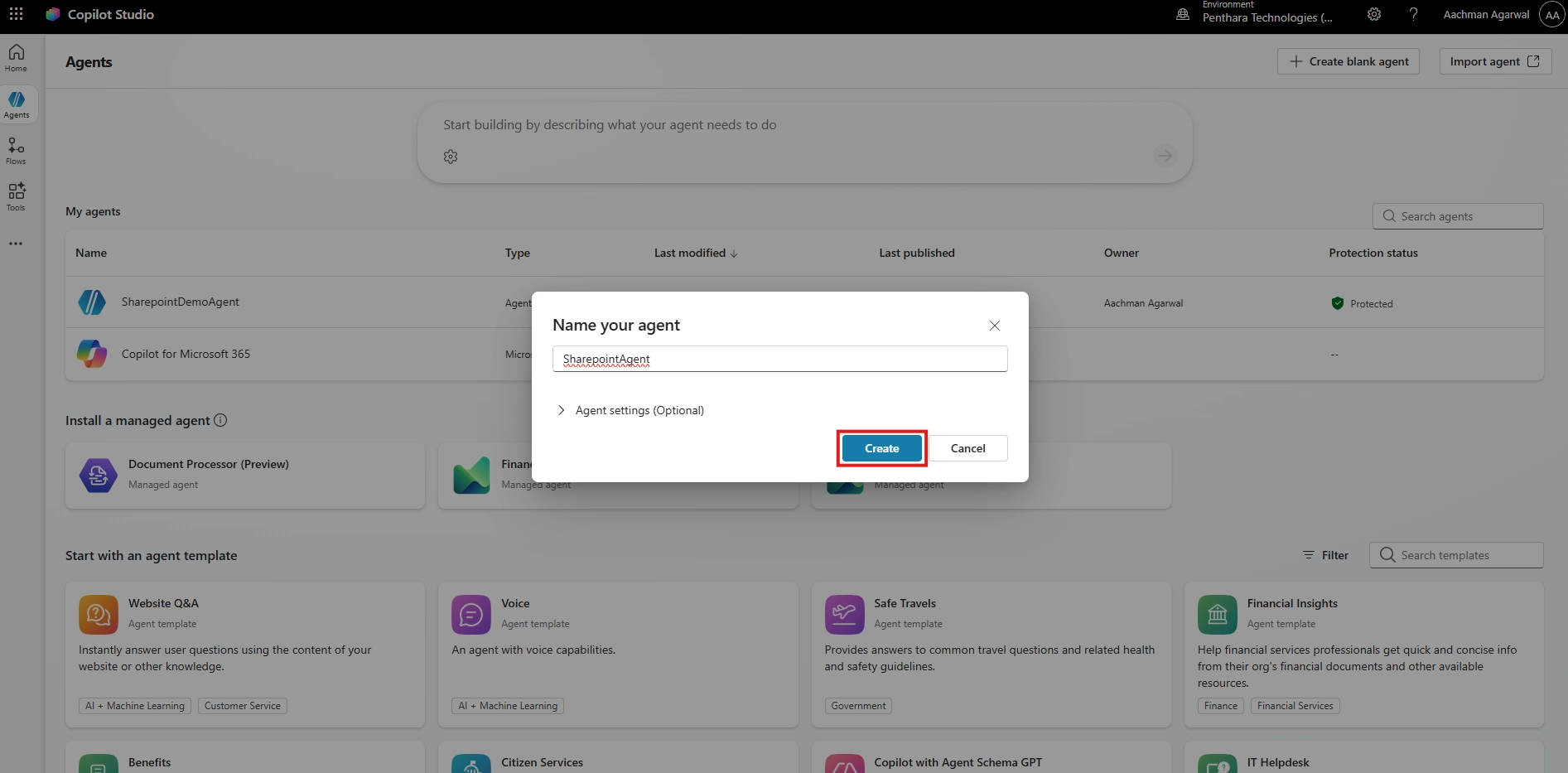
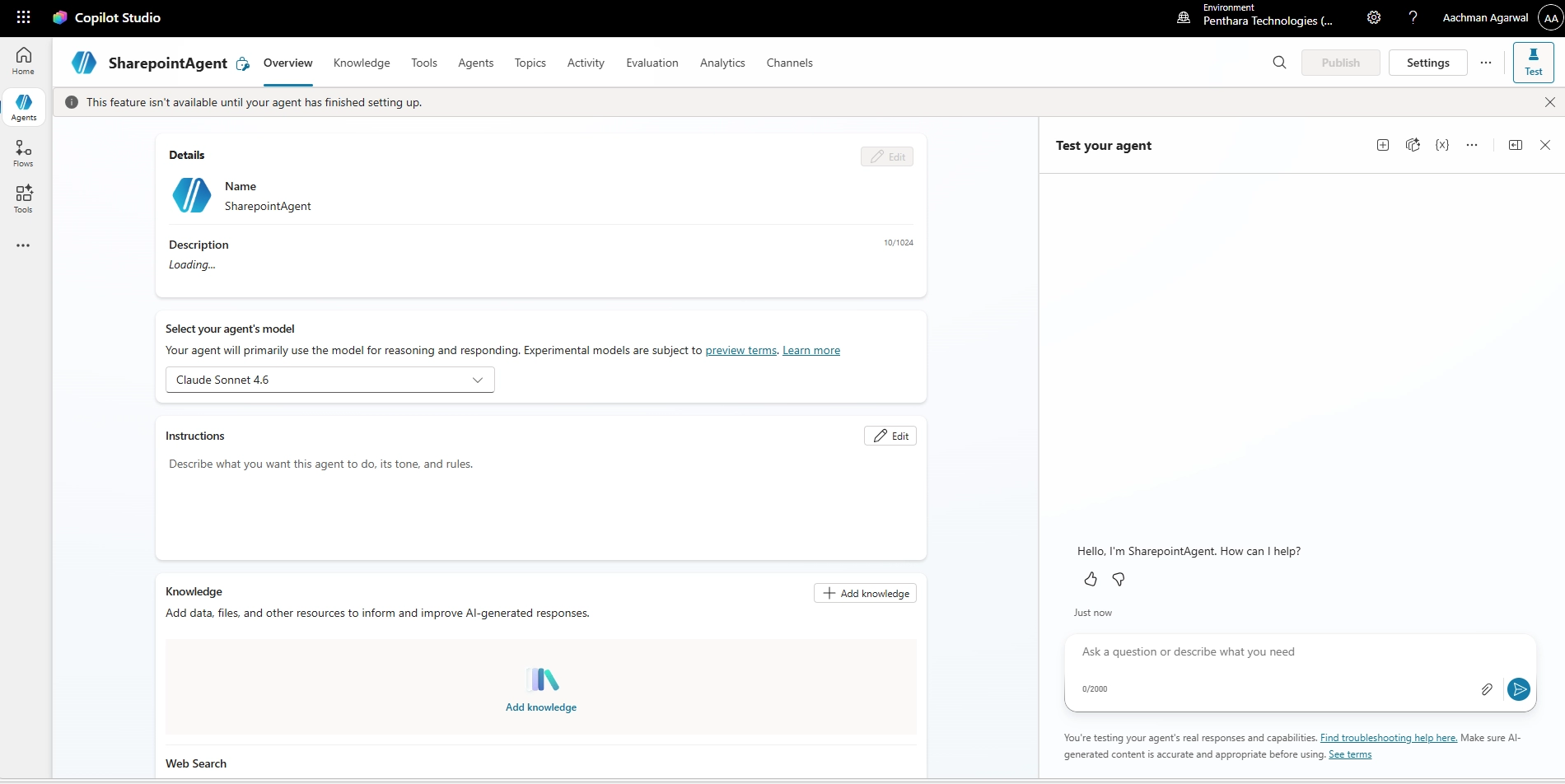
Click "Create" and choose to build a new agent from scratch or use a template. Give it a name and a clear description.


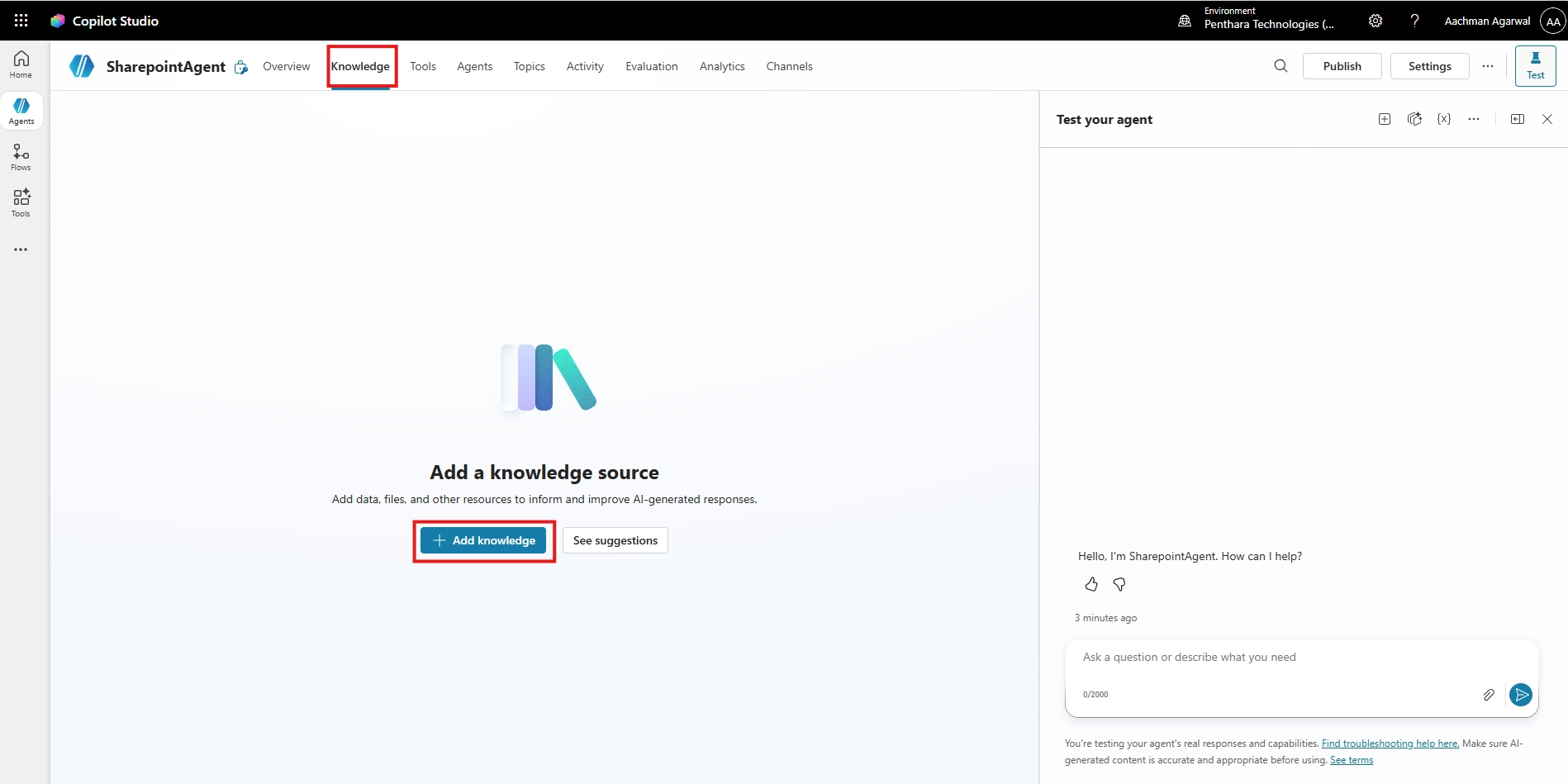
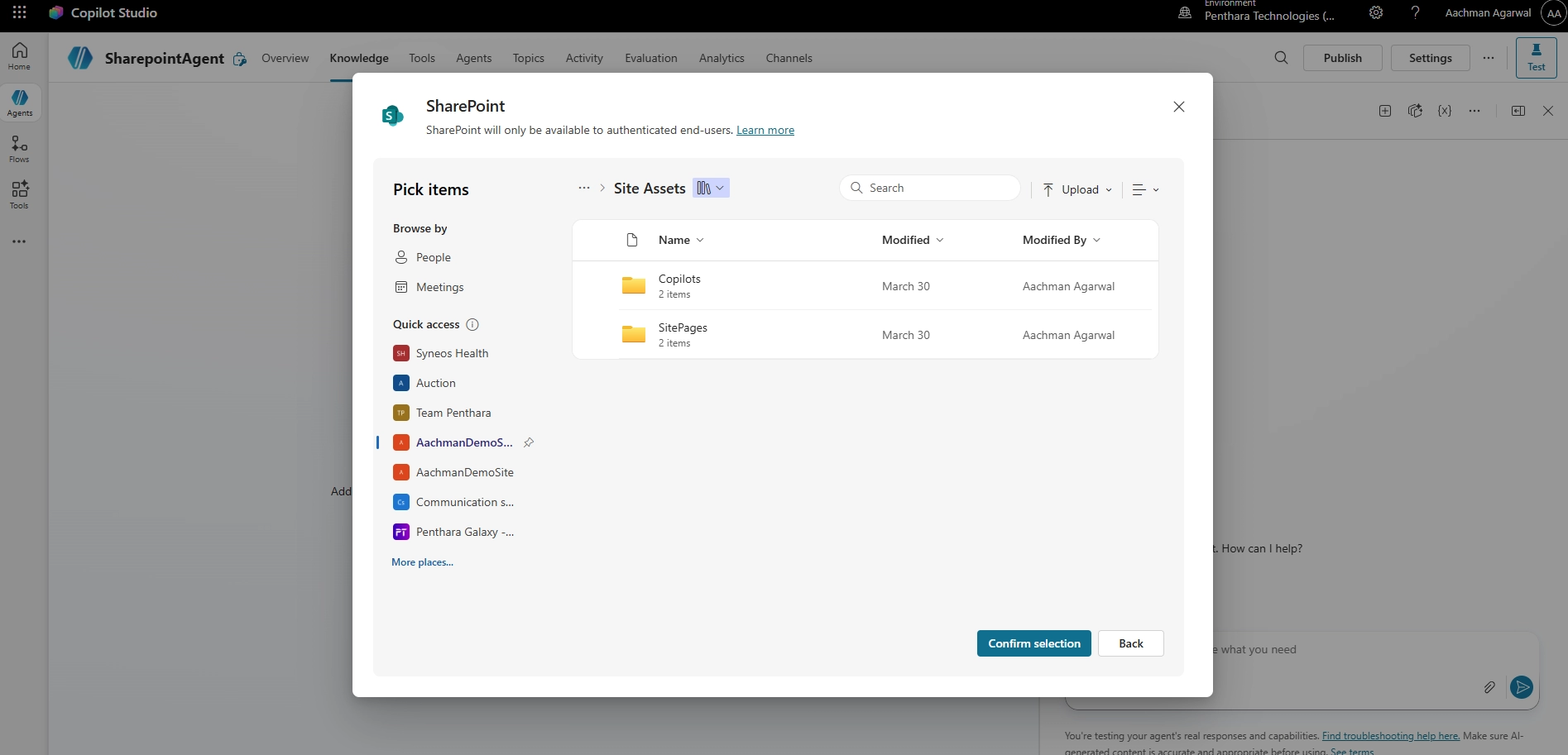
Add SharePoint sites and libraries as knowledge sources. Define conversation topics, fallback responses, and any Power Automate actions the agent should trigger.


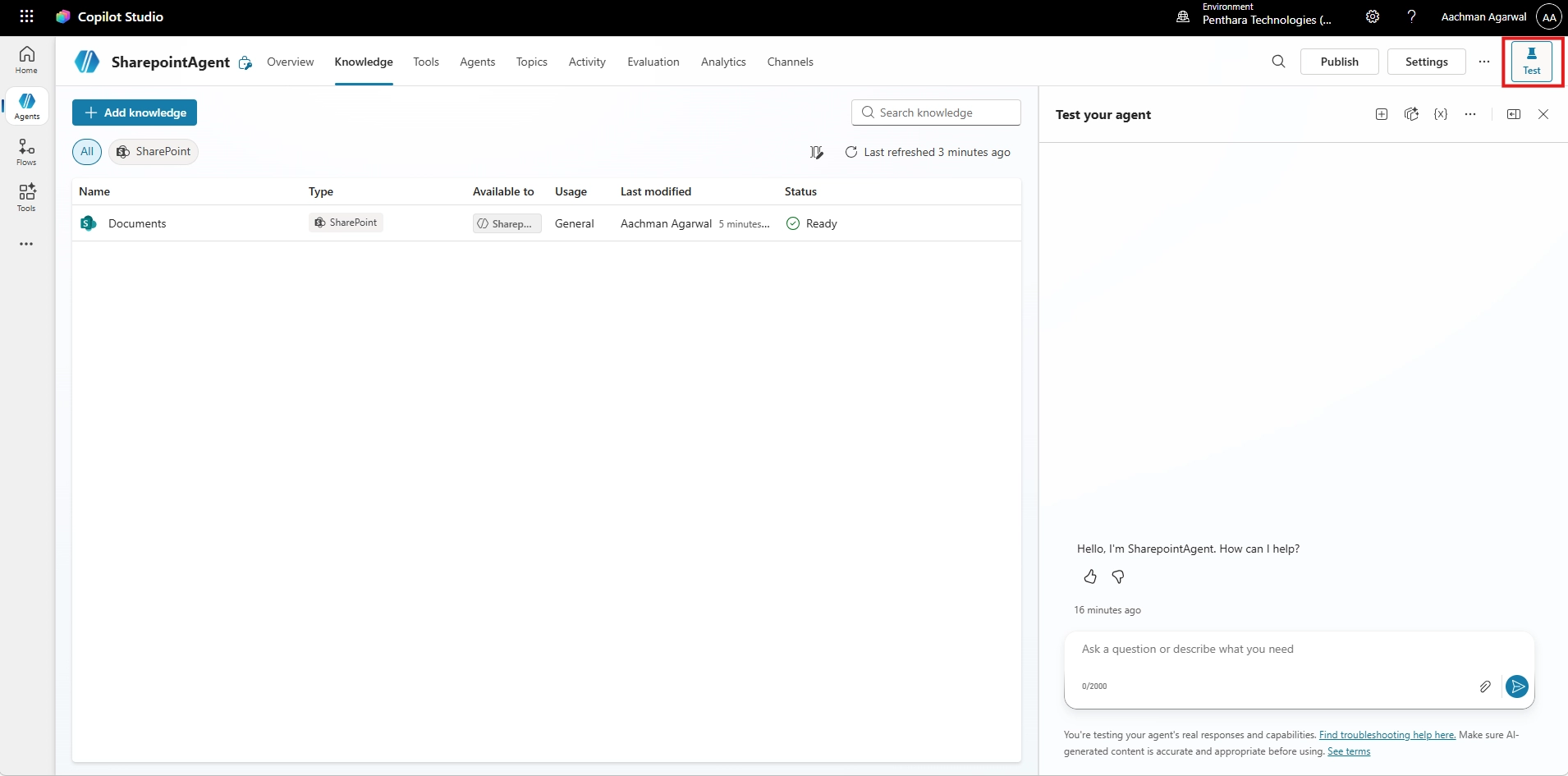
Use the built-in Test Chat panel in Copilot Studio to verify responses before going live.

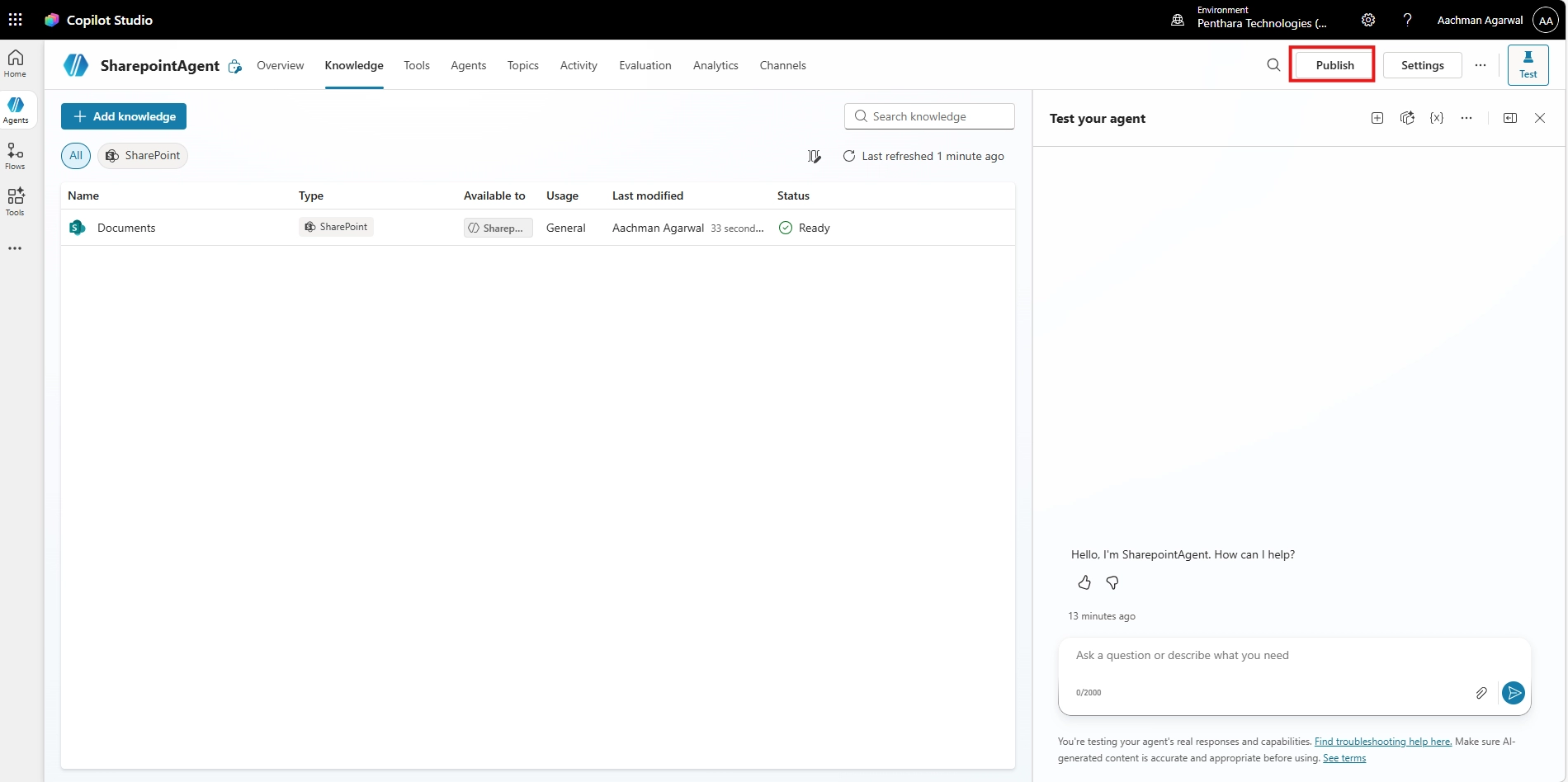
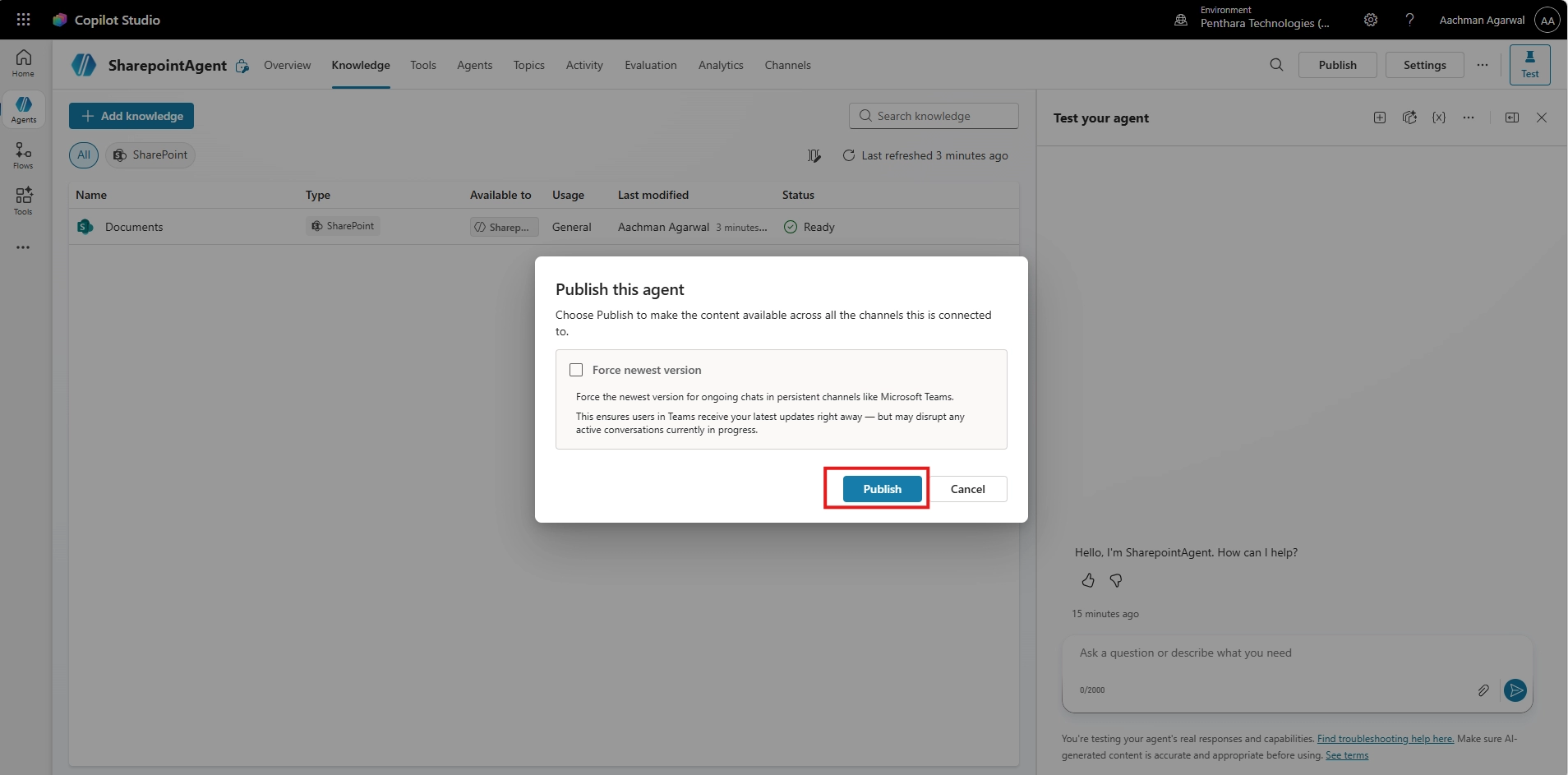
Click Publish, then go to the Channels page and select the SharePoint tile. Search for and select your target SharePoint site.


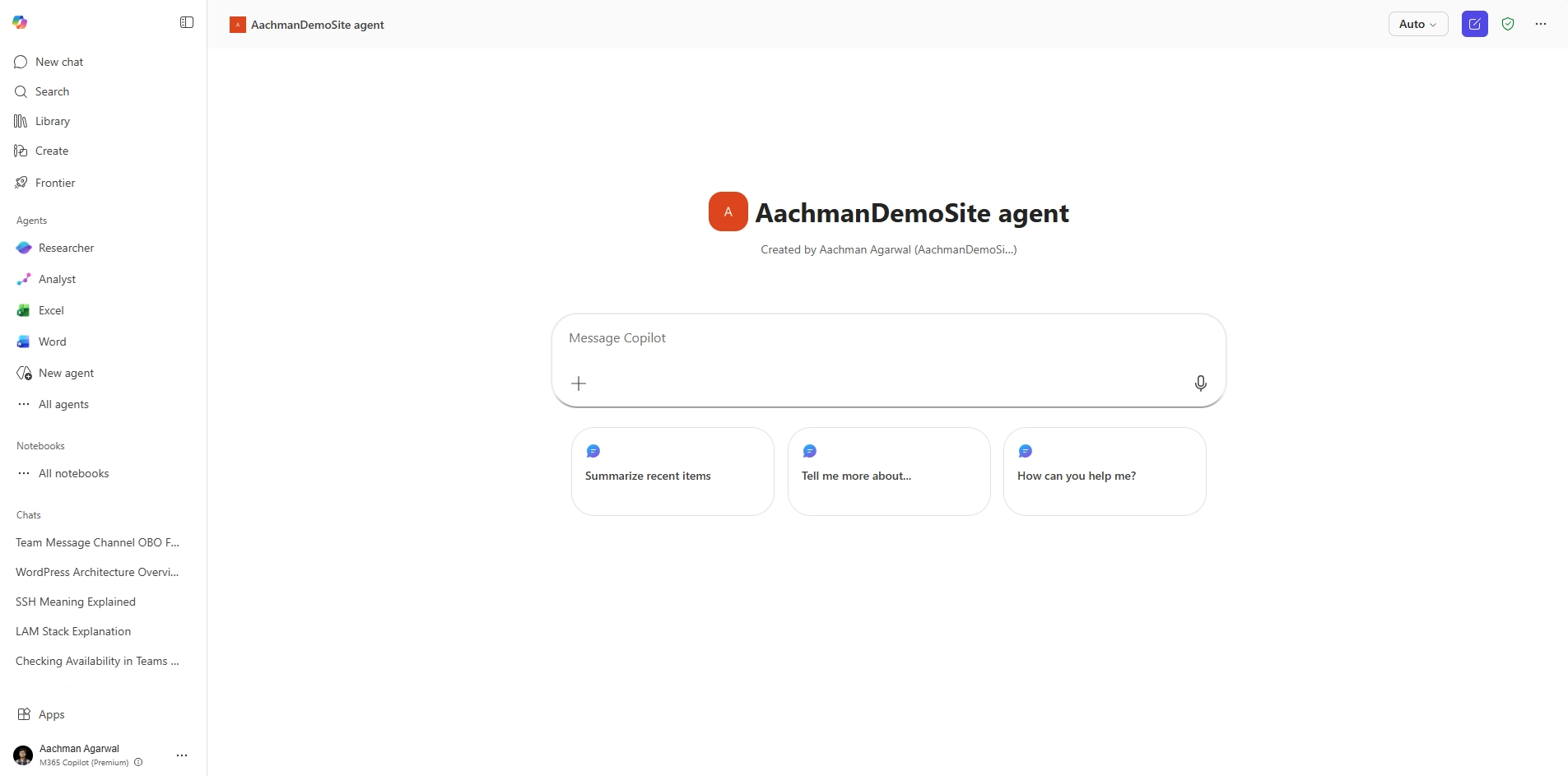
You have successfully created and deployed a Copilot Agent for SharePoint using both the built-in SharePoint method and the advanced Copilot Studio approach. The agent's sources, behaviour, and tone can be updated at any time. You can also embed the agent into SharePoint pages using the Agent Link web part for easy access across your entire site.
Ready to build a smarter SharePoint experience with Copilot?
Whether you need help designing your first Copilot Agent, refining knowledge sources, or deploying advanced AI workflows with Copilot Studio, Penthara’s Microsoft experts can help you do it right.
Book a free consultation and discover how we can help you build secure, scalable, and business-ready Copilot solutions for Microsoft 365.
Learn how to implement Microsoft 365 Copilot successfully with this step-by-step roadmap. Covers readiness assessment, phased deployment, change management, governance,...
Explore the latest Microsoft 365 Copilot updates including AI meeting recaps, Word editing, PowerPoint agentic features, and enhanced grounding.
Copilot doesn’t have a permission problem - your data does. Fix access, structure, and governance to unlock real AI productivity.